
On the webNo Mac needed
Your whole day on one page
Today, email, calendar, meetings, tasks, engagements and memory. Approve with a click. In voice mode you talk to Maverick, and it answers.
Your 2 pm brief is ready.
Maverick · Your personal AI assistant
The next step for your AI
Claude and ChatGPT answer when you ask. Maverick is up to speed before you ask: it connects your email, calendar and meetings, prepares your day, drafts replies and follows up on promises. You stay in control.
Works with
 Claude
 GPT
 Google Drive
Your 2 pm brief is ready.
Meeting brief · Northwind call · today 2:00 pm
Goal: lock the workshop date
Demo scenario · Northwind
The next step
You supply the context: copy emails, upload files, explain meetings.
Maverick already knows your email, calendar and meetings, and names the source.
It answers when you ask.
Maverick prepares before you ask: your day and every meeting.
After the conversation, following up is on you.
Maverick follows up on promises and has replies ready for your approval.
Maverick does not replace your AI, it extends it: it runs with Claude or GPT and also works directly inside Claude.
A day with Maverick
A day in the Northwind demo scenario: from the first look in the morning to the next steps after the call.
0107:45
You press “Start my day”. Maverick shows you what matters today: your meetings, the emails that need your reply, and what you need to decide.
Your day is set.
Start my day
Good morning.
Meetings
Needs you
To decide
0213:50
Ten minutes before the Northwind call, the brief is ready: the goal, where things stand and what is open, brought together from calls and emails. Every line names its source.
Everything on Northwind, with sources.
Meeting brief · Northwind call · today 2:00 pm · Teams
Goal: lock the workshop date
032:45 pm
In the call you promised the offer by Thursday. Maverick suggests a task from it, which you take on with one tap. One click, and the minutes are ready as an email to Lena. Nothing goes out until you approve.
Two suggestions. Your call.
Promise spotted · from the call, 2:31 pm
Send the offer to Lena by Thursday
Add as a taskMinutes · Northwind call
To: Lena · Northwind · Cc: Tom Weber
Workshop on 11 November confirmed. The revised offer follows by Thursday.
Your day is set.
Everything on Northwind, with sources.
Two suggestions. Your call.
Start my day
Good morning.
Meetings
Needs you
To decide
Meeting brief · Northwind call · today 2:00 pm · Teams
Goal: lock the workshop date
Promise spotted · from the call, 2:31 pm
Send the offer to Lena by Thursday
Add as a taskMinutes · Northwind call
To: Lena · Northwind · Cc: Tom Weber
Workshop on 11 November confirmed. The revised offer follows by Thursday.
Demo scenario · Northwind
The film
The whole flow in one film: the brief, questions by voice, an email with Touch ID, promises and Claude. All names are demo data.
What Maverick does
Pick an area. You see what Maverick does for you there, with an example from the Northwind day.
01Prepare · Your day
ExampleIn the evening Maverick shows you what stayed open and sets up tomorrow.
Close my day · 6:30 pm
Demo scenario · Northwind
02Reply · Email
ExampleYou open Tom's email and read what matters first, in two sentences, with evidence.
In short · Tom Weber · budget sign-off
Demo scenario · Northwind
03Plan · Calendar
Example“Invite Lena for the 11th”: the guest from a first name, the usual length, a Meet link, a conflict check.
Invitation · Draft
Demo scenario · Northwind
04Capture · Meetings
ExampleAfter the Northwind call, the headline and key points are there, each with its place in the conversation.
Northwind call · Summary
Demo scenario · Northwind
05Follow up · Tasks & promises
ExampleYour email to Lena shows the offer is out. Maverick ticks off the task, with that proof.
Tasks · Today
Demo scenario · Northwind
06Oversee · Engagements & people
ExampleThe Northwind engagement tells you in one word and one sentence where it stands, and who handles what.
Engagement Northwind · On track
Demo scenario · Northwind
07Remember · Memory & knowledge
ExampleA new email names a different budget than the call on 14 October. Maverick shows you the contradiction.
Knowledge · Northwind · learned
Demo scenario · Northwind
08Delegate · Assignments & research
Example“How does Northwind decide on budgets for 2027?” Maverick searches your sources and the web and delivers with evidence.
Assignment · research question · Running · step 4 of 4
Demo scenario · Northwind
“On request” means off until you switch it on. Some of it needs the Mac.
Trust
Everything that goes out follows the same flow: you see the source, review the suggestion and approve exactly that version.
Source
Email from Tom · 16 Oct
Every statement has its source: an email, a meeting or the place in the call.
Suggestion
Reply draft to Tom
Maverick drafts. Before you send, you see what the draft rests on.
Your approval
Web: a click · Mac: Touch ID
You approve exactly the version you see. By voice only if you switch it on.
Action
Sent and checked
Maverick sends and checks in your Sent folder that the email went out.
Where evidence is missing or conflicts, Maverick says so instead of inventing a smooth answer.
Emails, invitations and meeting changes. An AI answer never counts as approval.
What Maverick may do on its own internally, such as closing what is done or filing it, is your setting. Every change is visible and one tap undoes it.
One instance for exactly one person, hosted in Frankfurt. Only the excerpts found for a question go to the AI, never your whole mailbox.
Where Maverick works
On the webNo Mac needed
Today, email, calendar, meetings, tasks, engagements and memory. Approve with a click. In voice mode you talk to Maverick, and it answers.
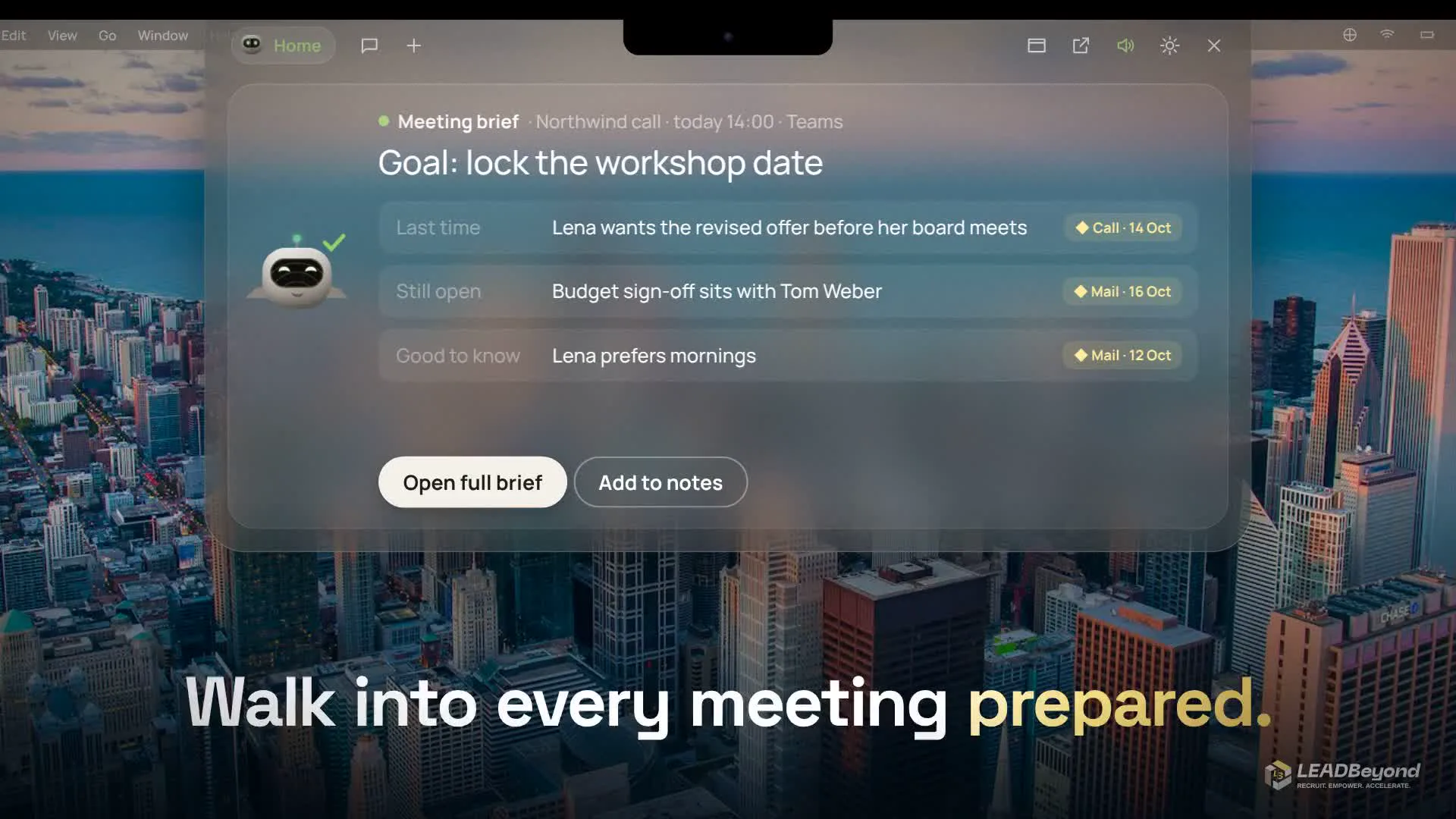
On the MacMac, macOS 14 or later
With “Hey Mav” on request. Ask by voice, approve emails and invitations with Touch ID. The Mac app captures calls in Zoom, Teams, Webex and Meet, reads folders you shared and works in Chrome.
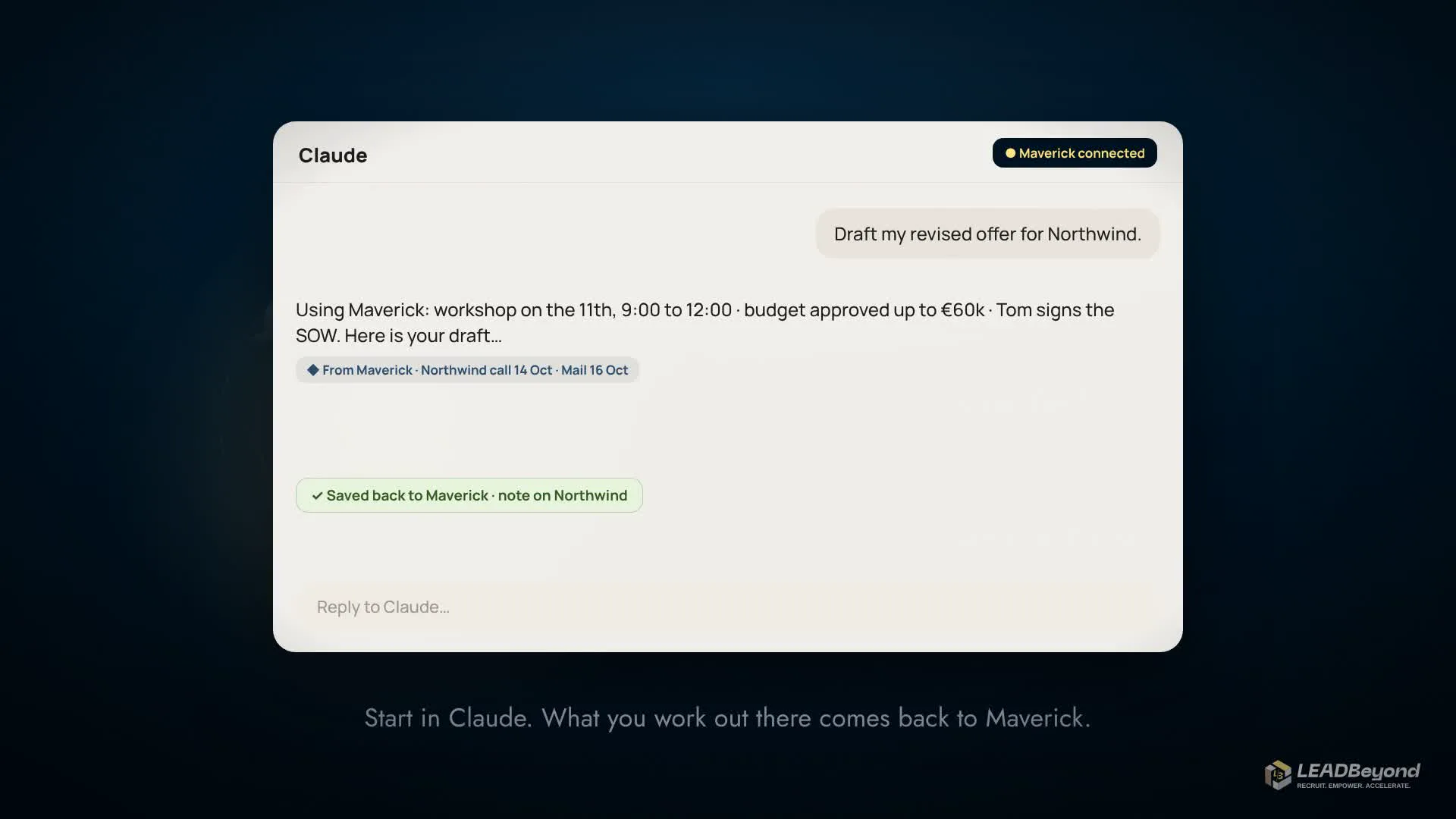
Inside ClaudeOptional
As a connector in Claude: Claude reads your records and helps plan your tasks. Results come back as a note or a knowledge suggestion. Claude cannot send anything through Maverick.
Without a Mac: everything on the web, including uploading recordings. With a Mac, also: the notch, Touch ID, call capture, folders and Chrome.
How to start
We show you Maverick on real routines and find out what matters in your day.
We set Maverick up for you: your own instance, connected to your Google Workspace account, hosted in Frankfurt.
You start with “Start my day”. More areas follow once the first routine sits.
What you need
FAQ
An AI chat writes well but does not know your working context: every question starts with copy and paste. Maverick is connected to your email, your calendar and your meetings, works even when you do not ask, and shows the source of every statement.
Internally it prepares and tidies up: it checks that your meetings are prepared, spots promises, learns from new email and meetings every night, files records under the right engagement and closes tasks your sent email shows as done. You set which of these it may do on its own, and one tap undoes any such change.
Everything that goes out: emails, invitations, changes to meetings and actions on websites. You approve exactly the version you see, with a click on the web, with Touch ID on the Mac or, if you switch it on, by voice. A promise Maverick spots becomes a task only when you take it on.
In your own instance, hosted in Frankfurt. Everything stored belongs to you; Maverick does not access anyone else's mailbox or calendar. Only the excerpts found for a question go to the AI.
No. On the web you get your day, email, calendar, meetings, tasks, engagements, memory and assignments, and you can upload recordings in the browser. A Mac with macOS 14 or later adds the notch with voice and Touch ID, call capture, and work with folders and Chrome.
With a live demo. Then we set up your own instance, connected to your Google Workspace, and you start with “Start my day”. You need Google Workspace with Gmail and Google Calendar.
That depends on the scope, for example which areas Maverick should take on for you. We make you an offer after the live demo.
Ready when you are.
In the live demo we show you Maverick on real routines and talk about what your AI assistant would look like.